
What OSCAR does
Installations are usually run by software on one computer: video, sound and lights. OSCAR lets you design an interface for them, a panel of buttons and sliders, and use it from any phone, tablet or computer.
When someone touches a button, OSCAR sends a message to your software. Most creative software understands OSC (Open Sound Control), a common way for programs to talk over a network. OSCAR also speaks MIDI, for music gear, and DMX, for stage lights.
Three things every message needs
IP address
Which computer the message is for, written as numbers such as 192.168.1.20. If the software is on the same computer as OSCAR, use localhost.
Port
Which program on that computer should get it. Each program picks its own number: Resolume uses 7000.
Message
What the message is about, written like a path, such as /composition/layers/1/video/opacity. Your software's manual lists the messages it understands. Or let OSCAR find it: click Learn, then move the control in your software.
8880; the address to use is shown at the left of the editor's top bar.Guides by platform
Each one starts from a template that ships with OSCAR and lists every address.
TouchDesigner
The Parameter Rack, two CHOPs, two sketches to download, and a video.
Resolume Arena
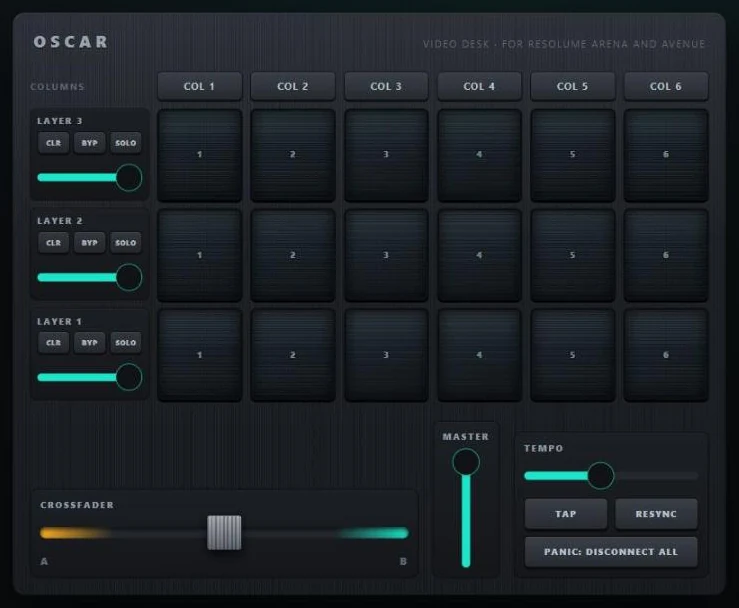
A video desk: clips, columns, opacity, crossfader, master and tempo.
QLab
A stage manager's remote: GO, STOP, the playhead and the cue list.
DMX lights
A lighting desk over Art-Net, sACN or a USB DMX interface.
MIDI and DAWs
A MIDI controller for Ableton Live, Bitwig, Logic, Reaper and more.
Tutorial: trigger videos in Resolume Arena
We will control Resolume Arena, VJ software and a media server, and trigger three videos from a tablet showing an interface built with OSCAR.
You will need
- A computer with Resolume Arena installed.
- A tablet or phone (optional).
- All devices on the same network.
Set up Resolume Arena
- Open Resolume Arena.
- Go to Arena > Preferences > OSC and turn on OSC Input. The default port is 7000.
- Put a different video in Column 1, Column 2 and Column 3, and save.
- Go to Output > Fullscreen.
Set up OSCAR
- Download OSCAR for your operating system. For this tutorial, install it on the computer that runs Resolume.
- Open OSCAR. The editor opens in a window; it also works in a browser at the address OSCAR prints.
- Open the Blocks tab on the right. From IO Widgets, drag three Buttons onto the canvas and style them as you like.
- Select the first button and open its settings (the gear icon, OSC Settings). In the OSC section, Data out is already ticked. Set:
- Ip:
localhost, since Resolume is on the same computer. For another computer, use its IP address. - Port out:
7000 - Message:
/composition/columns/1/connect
- Ip:
- Open File → Push to preview and click your buttons. The videos change in Resolume.
- To use a tablet, press Publish in the top bar, then Publish in the window that opens. Scan the QR code with the tablet's camera. Keep OSCAR running: it is what sends the messages.
Next steps
Music gear (MIDI)
In a widget's settings, open the MIDI section and turn on Data out to send to a synth or music software. To move the widget with a knob on a MIDI controller, turn on Data in, click Learn and touch the knob. To reach music software on the same computer, you need a virtual MIDI cable: the IAC Driver on a Mac, or loopMIDI on Windows.
Lights (DMX)
In the DMX section, turn on Data out and choose how your lights are connected: over the network, or through a USB adapter. Then choose the light's channel. A slider controls one channel, and a colour picker three (red, green and blue).
Passing messages along
A widget can pass on what it receives: a knob on your MIDI controller can dim a light and move a video at the same time. In the widget's settings, set Send when to Changed by the user or by data in.
When something does not respond
Click ACTIVITY in the top bar to open the network log. It lists everything OSCAR receives and sends, so you can see whether a message went out and where.
Templates
Open File → Open project or template to start from a ready-made interface: an audio console, a drum kit, a vintage synthesizer, lighting consoles, controllers for Resolume, QLab and TouchDesigner, and more.
Saving your work
There is nothing to press: OSCAR saves every change as you make it. Click the title in the top bar to rename your project. File → Export a copy writes it to a file, to keep a backup or send it to someone.
AI assistants
An AI assistant such as Claude can help you design an interface: it prepares a draft for you to open and check, and it never controls your show. How it works shows how to connect one.
More
The full manual is the README on GitHub. Found a problem, or want a feature? Open an issue on GitHub, or write to hello@createwithoscar.site.