
What you get
A tablet on a stand, or a phone handed to a visitor, showing one interface that they cannot leave: a lighting panel at a front desk, a video remote beside an installation, a mixer at a bar. Kiosk mode is in the OSCAR app for Android and iPhone and iPad, and it has two parts:
- The app's own lock. The interface opens by itself every time the app starts, the top bar and the way back are gone, the screen stays on, and leaving takes a long press in a corner and a PIN.
- The device's lock. The app cannot stop someone from swiping to the home screen; only the system can. On Android that is app pinning, on an iPad or an iPhone Guided Access. Each is a setting you switch on once.
You will need
- The OSCAR app on the tablet or phone, from Google Play or the App Store.
- An interface to show: one that OSCAR on a computer has published, a public link, or one of the pages built into the app under Standalone.
- A screen lock on an Android device (a PIN or a pattern), so that unpinning asks for it.
Start the kiosk in the app
- Open the interface in the app, then press Kiosk mode at the right of the top bar.
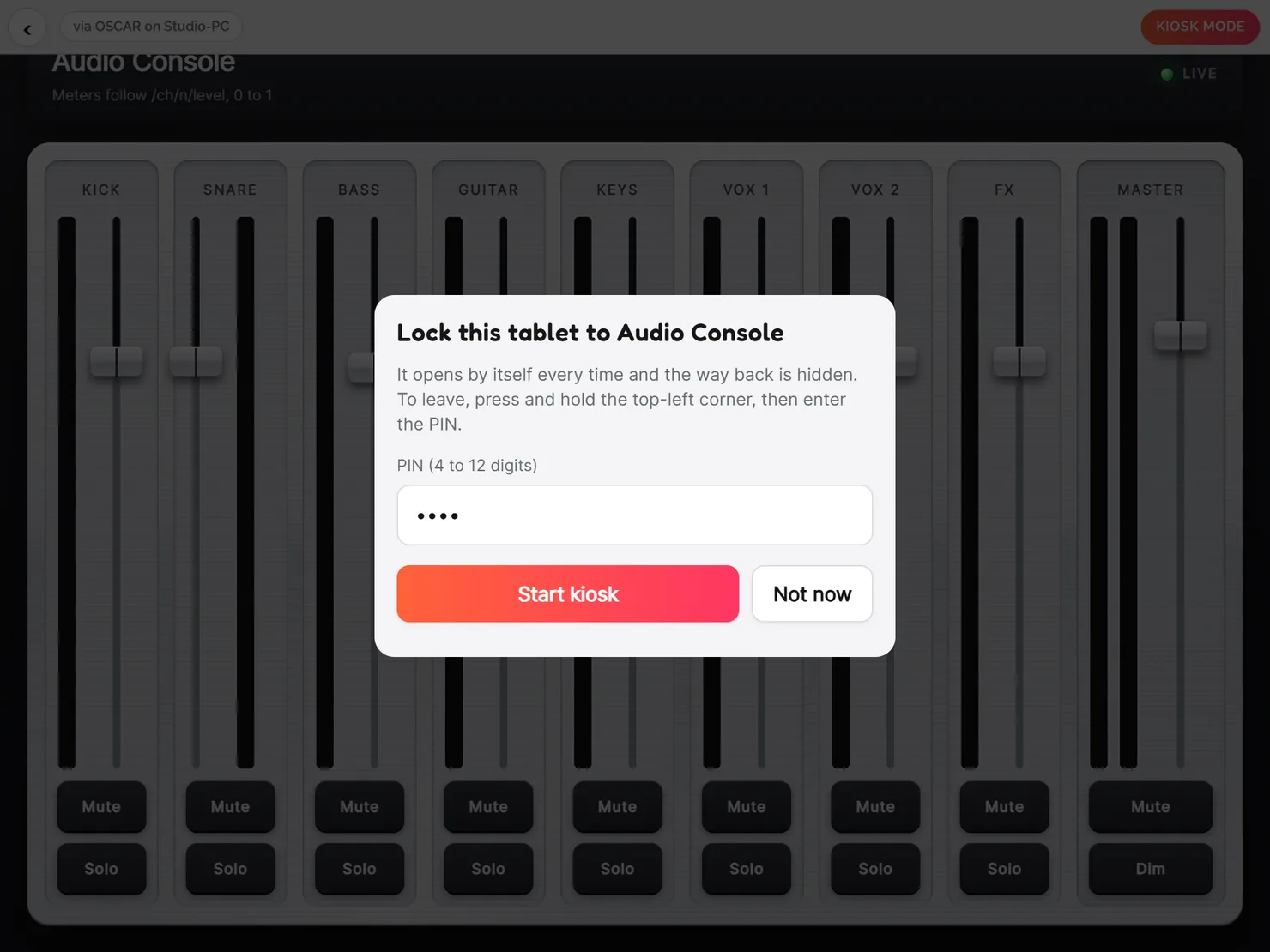
- Type a PIN of 4 to 12 digits. It is the one that leaves the kiosk, so choose one the visitors will not guess and the staff will remember.
- Press Start kiosk. The first time, the app asks to unlock the kiosk through your store account; after that it is unlocked for good.
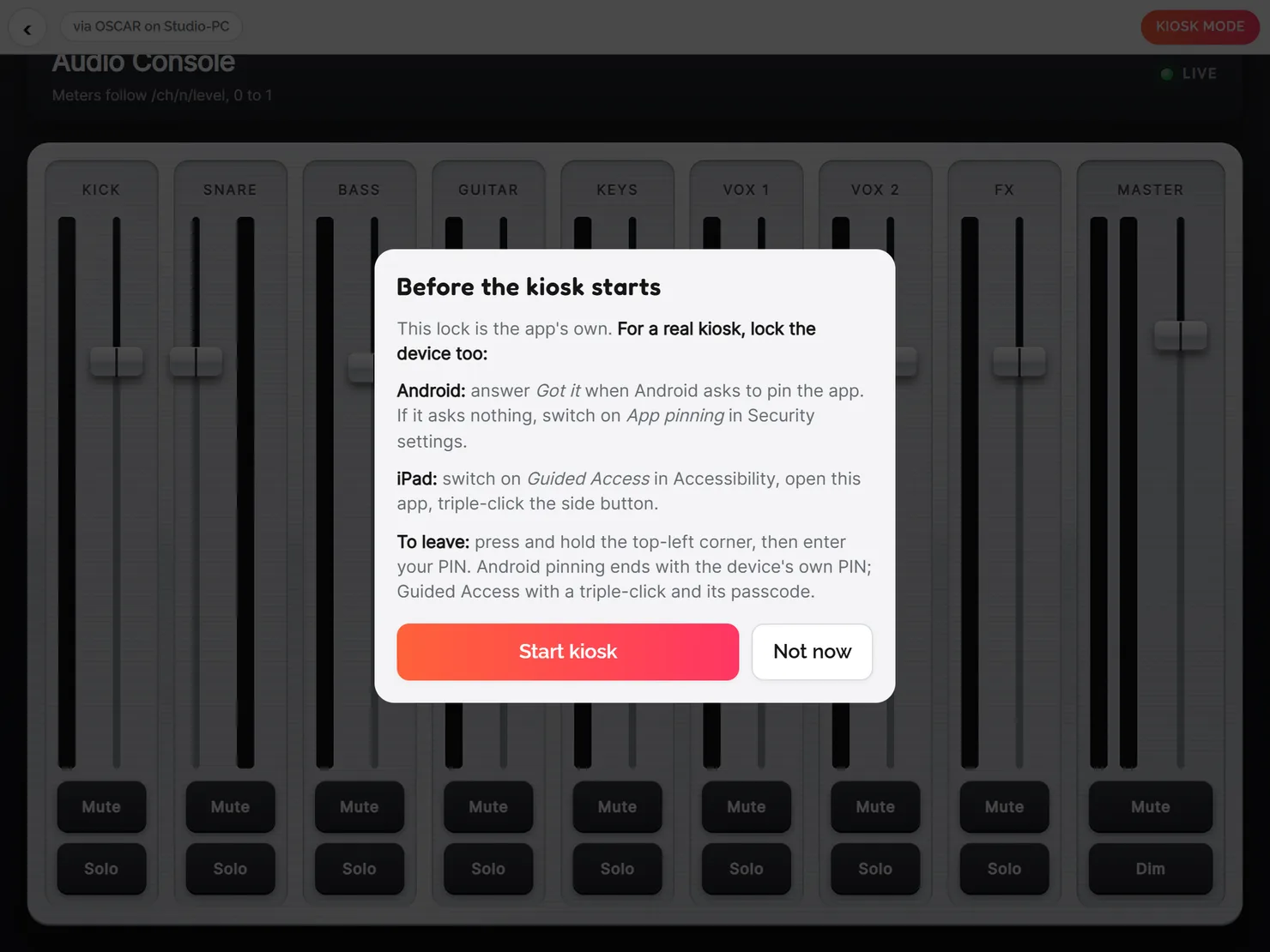
- A box says what the device still has to do (the sections for Android and iPad below). Press Start kiosk again.
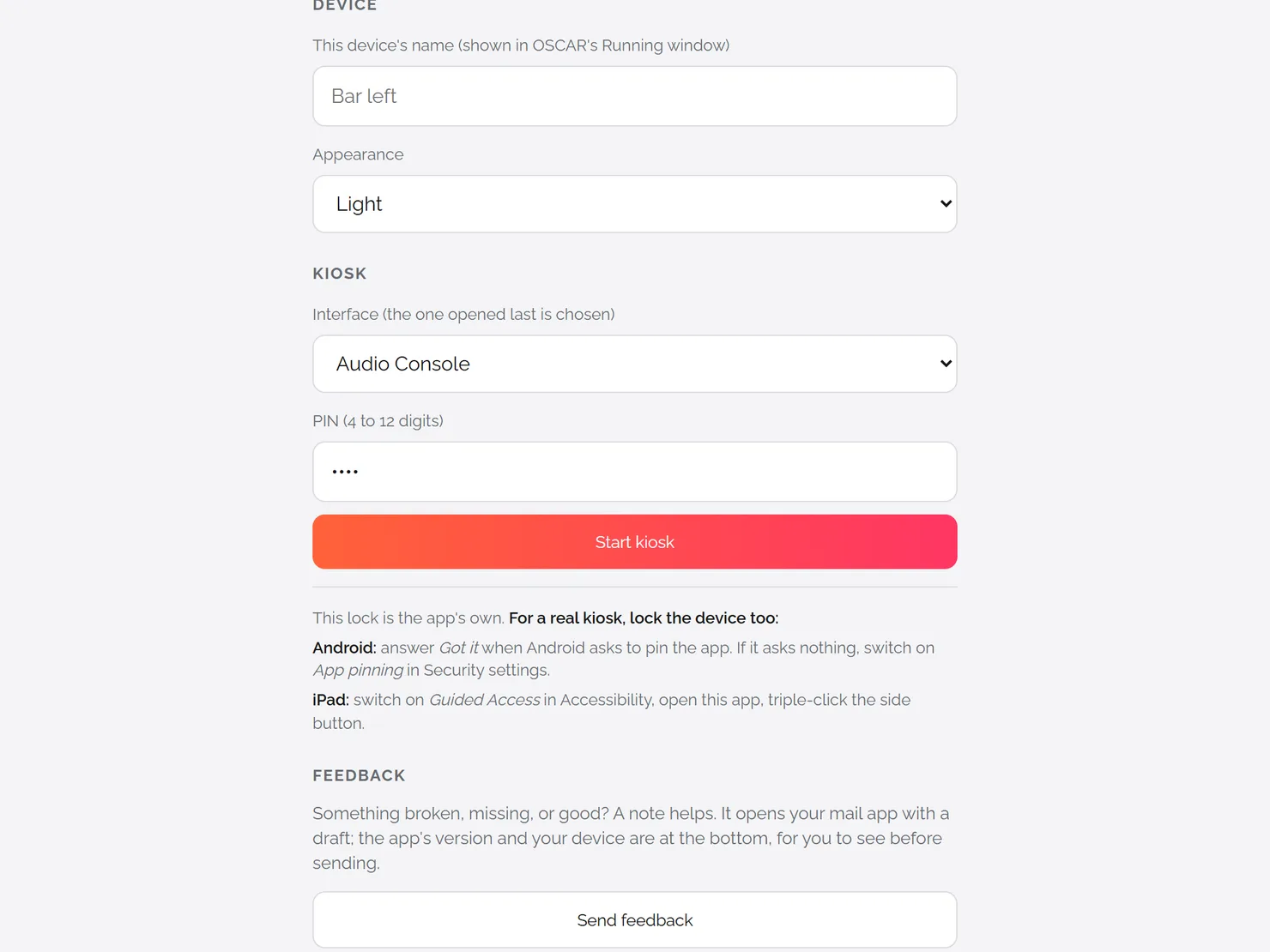
The same can be done without opening the interface first: the gear on the first screen opens Settings, and under Kiosk there is a list of every interface the app knows, the PIN and the same button.
Which versions these steps are for
The device's lock belongs to the system, so the steps are written for the versions released in the last two years:
- Android 16 and 17.
- iPadOS 26 and 27 on an iPad, and iOS 26 and 27 on an iPhone.
To see yours: on Android, Settings → About tablet (or About phone) → Android version; on an iPad or an iPhone, Settings → General → About.
Android 16 and 17: app pinning
App pinning keeps one app on the screen: Home, Back and Recents do nothing until the device's own PIN, pattern or password is given.
- Turn app pinning on.
- Google Pixel: open Settings, search for App pinning and switch it on. It is among the Security settings.
- Samsung Galaxy: Settings → Security and privacy → More security settings → switch on Allow apps to be pinned.
- Start the kiosk in the OSCAR app. Android asks, “App is pinned”: answer Got it.
If Android asks nothing when the kiosk starts, app pinning is still off. The app says which lock it got under Settings → Kiosk: “Pinned by Android” when it worked.
To unpin, with gesture navigation swipe up and hold; with three buttons, touch and hold Back and Overview together (Recents and Back on a Samsung). Then enter the device's PIN, pattern or password. Pinning does not survive a restart: after one, open the OSCAR app and the kiosk comes back, with Android's question.
iPad and iPhone (iPadOS and iOS 26 and 27): Guided Access
Guided Access is Apple's way to hold an iPad or an iPhone in one app until a passcode is given. The steps are the same in both versions and on both devices; only the button to triple-click differs.
- Open Settings → Accessibility → Guided Access and switch it on.
- Tap Passcode Settings, then Set Guided Access Passcode. It is separate from the PIN in the OSCAR app; they can be the same digits. Face ID or Touch ID, in the same place, is another way to end a session: leave it off if people enrolled on the iPad should not be able to.
- Start the kiosk in the OSCAR app.
- With the interface on screen, triple-click the top button on an iPad or the side button on an iPhone (the Home button on a device that has one).
- Tap Start. What stays on during the session (touch, the buttons, motion) is under Session Settings; leave touch on, since the interface is there to be touched.
To end it, triple-click the same button, enter the Guided Access passcode and tap End. Guided Access stays through sleep, not through a restart: after one, open the app and triple-click again.
While it runs
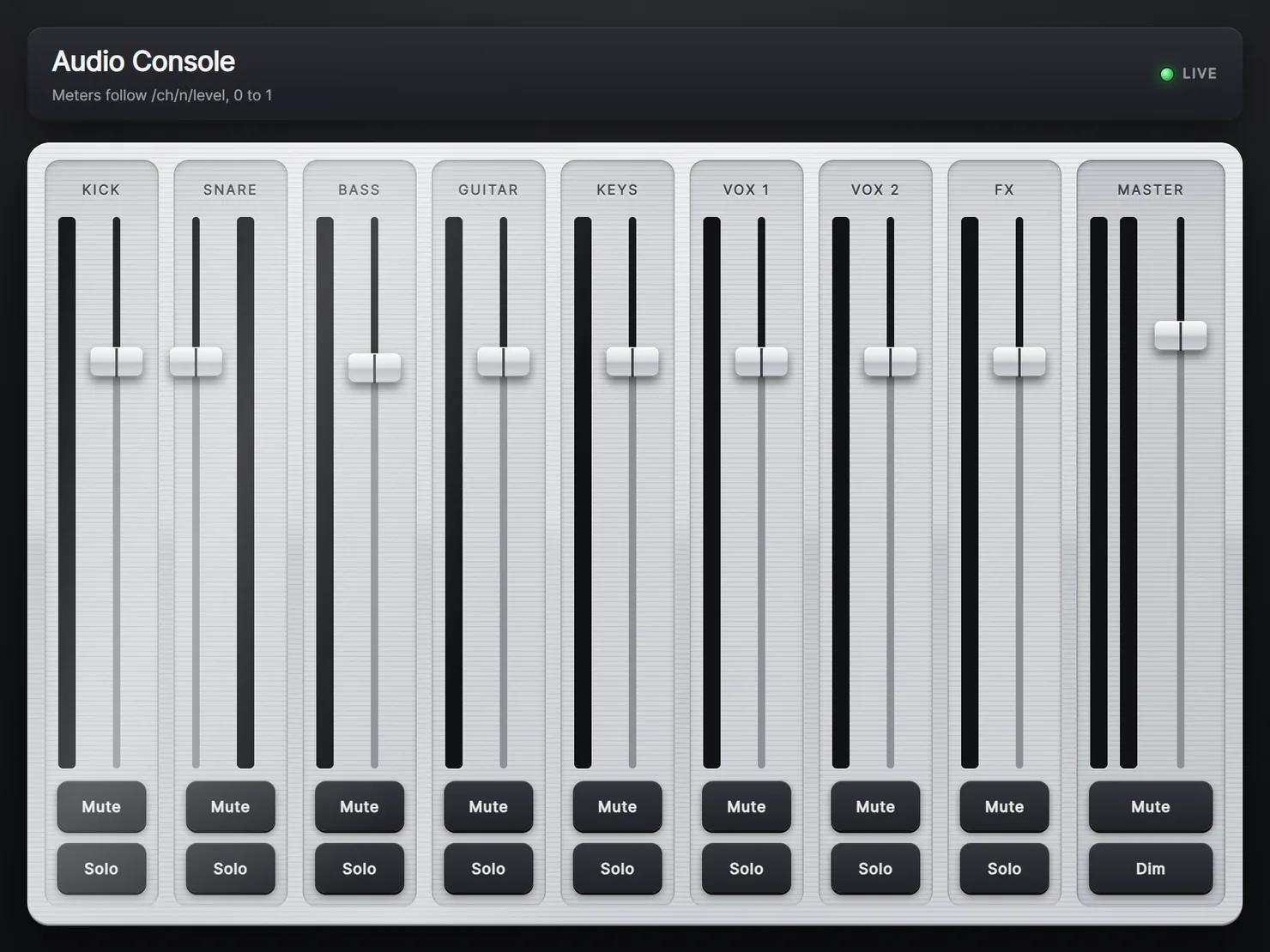
- The screen stays on. Keep the device on its charger.
- If the computer running OSCAR is off, or the Wi-Fi drops, the screen shows a plain waiting screen and keeps trying. The interface returns by itself; a visitor is never shown anything else.
- The kiosk is dark around the interface, whatever appearance the app is set to.
- On the local network the kiosk needs no internet. A public link needs it, as it does in a browser.
Leave the kiosk
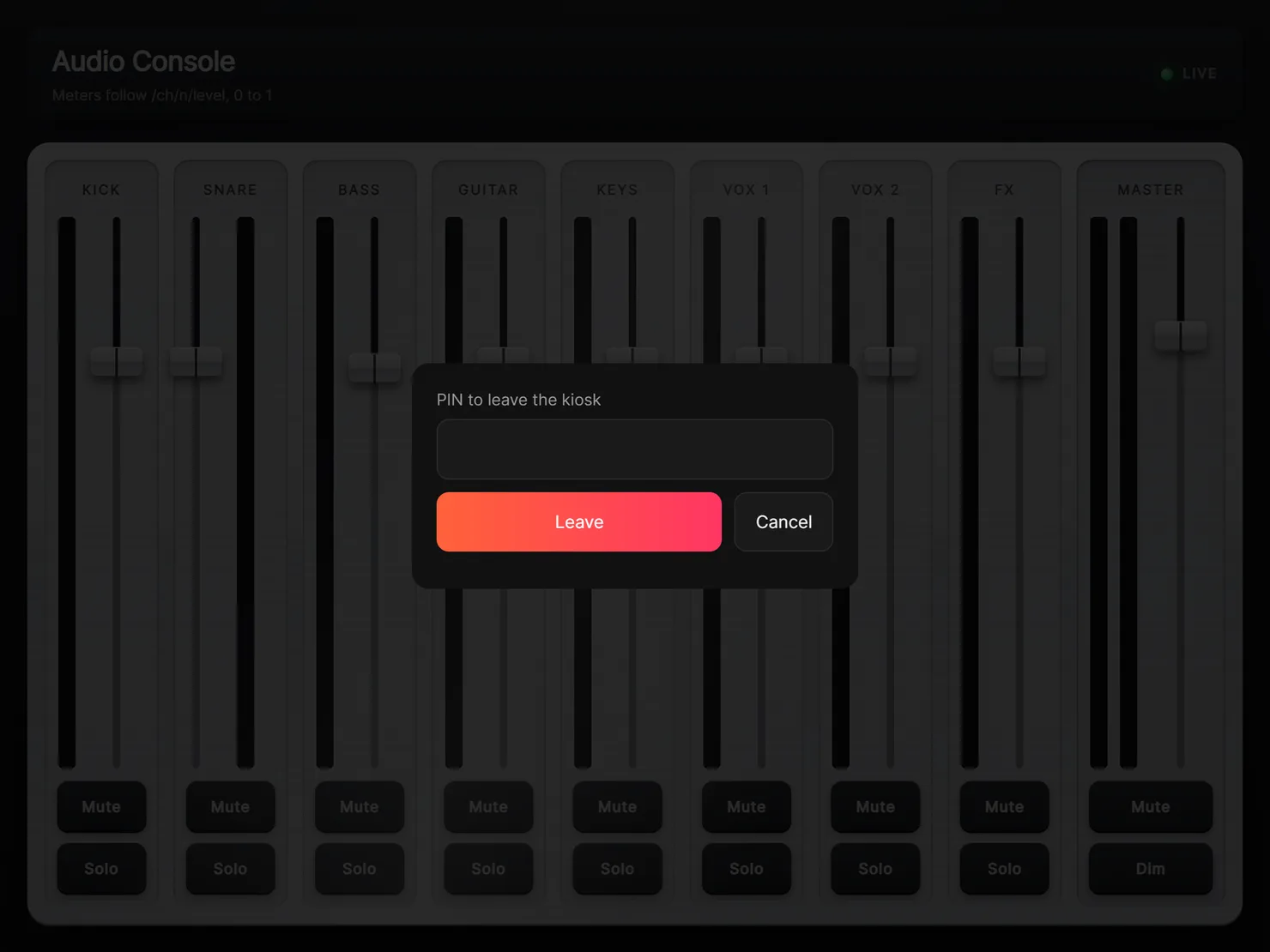
- Press and hold the top-left corner of the screen for a second and a half.
- Type the PIN and press Leave. The app opens its Settings, where Back to the kiosk returns and Stop kiosk ends it. The interface and the PIN are kept for next time.
- To use the rest of the device, end the device's lock as well: unpin on Android, or end Guided Access on an iPad or an iPhone.
A permanent installation
App pinning and Guided Access end at a restart. For a tablet that must come back by itself after a power cut, each system has a stronger lock, set up once from a computer:
- Android, device owner. On a tablet that was just factory reset and has no account on it yet, connect it by USB with debugging on and run
adb shell dpm set-device-owner com.createwithoscar.app/.KioskAdmin. The app then locks the tablet fully when the kiosk starts: no status bar, no notifications, no gesture out, and it is the Home app, so it returns after a restart or a crash. To undo it, stop the kiosk and runadb shell dpm remove-active-admin com.createwithoscar.app/.KioskAdmin, or reset the tablet. - iPad, supervised. On an iPad supervised with Apple Configurator on a Mac, or through an MDM, the app enters Single App Mode by itself when the kiosk starts, with no triple-click, and stays in it through a restart.
Questions people ask
Can a visitor get out of the kiosk?
Not with both locks on. The app hides every way back and asks for its PIN; app pinning on Android or Guided Access on an iPad blocks the home gesture, the app switcher and notifications until the device's own passcode is given. With the app's lock alone, a visitor can still swipe to the home screen.
Does the kiosk come back after the tablet or phone restarts?
The app remembers the kiosk and opens the interface as soon as it is started. Android app pinning and Guided Access do not survive a restart, so someone has to open the app and lock the device again. A tablet set up as device owner on Android, or a supervised iPad, returns to the kiosk by itself.
What does the kiosk show when the computer running OSCAR is off?
A waiting screen with the OSCAR logo, and nothing a visitor could act on. The app keeps trying and shows the interface again when OSCAR is back.
Does kiosk mode need the internet?
No. An interface served by OSCAR on the same network, or one of the app's Standalone pages, runs with no internet. Only a public link, which travels over the internet, needs it.
Do I need to buy the kiosk again on a second device or after reinstalling?
No. The unlock belongs to your store account: on another tablet or phone with the same account, or after a reinstall, the app finds it by itself, and Restore purchases under Settings → Kiosk asks the store again.
Can I use kiosk mode on a phone?
Yes. It works the same on an Android phone or an iPhone, with app pinning or Guided Access.
More guides
TouchDesigner · Resolume Arena · QLab · DMX lights · MIDI and DAWs · Getting started