
What you get
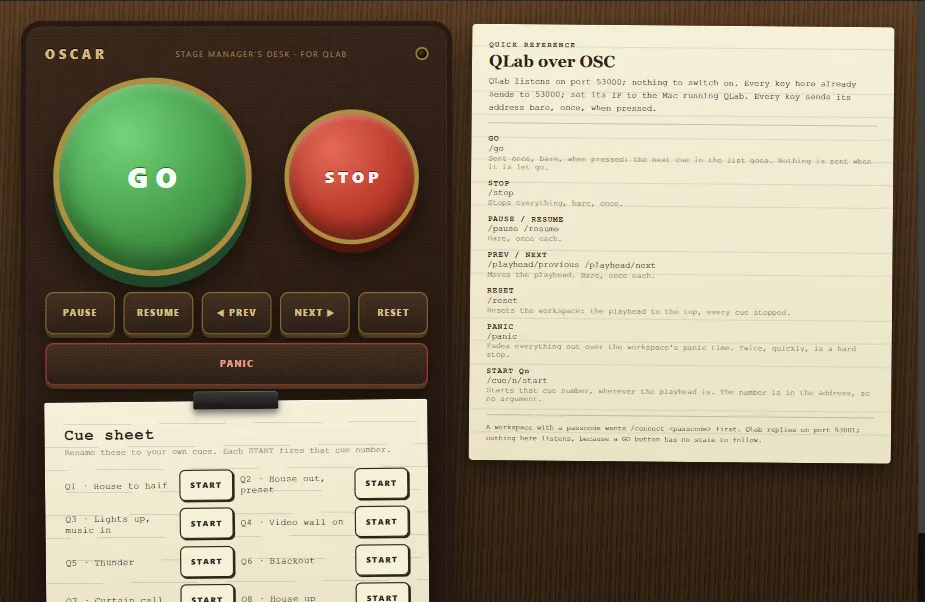
The QLab Stage Manager's Desk template is a prompt desk: a big green GO and a red STOP, keys for PAUSE, RESUME, PREV, NEXT and RESET, a PANIC bar, a lamp that lights while any key is down, and a cue sheet with a START key for each of eight cues. Every address is QLab's own, for QLab 4 and 5, and every key already sends to port 53000.
You will need
- QLab 4 or 5 on a Mac.
- OSCAR, on that Mac or on any computer on the same network.
- A phone or tablet on that network.
Set up QLab
Nothing. QLab listens for OSC on port 53000 out of the box. Two things to know:
- If the workspace has an OSC passcode, QLab wants
/connectwith it before anything else. For a remote like this one, leave the passcode off. - Make sure the Mac's firewall lets UDP 53000 in if OSCAR is on another computer.
Set up OSCAR
- File → Open project or template → QLab Stage Manager's Desk.
- Select every key at once and set its Ip to the Mac running QLab. On the same Mac,
localhostis already set. - Press Publish, then Publish in the window, and scan the QR code. GO on the phone is GO in QLab.
- For a desk that stays on the stage manager's table all run, use Lock editing (the padlock in the top bar): the interface keeps working on every device while only the computer running OSCAR can change it.
With the OSCAR app
The browser is enough, and there is also a free OSCAR app for Android and for iPhone and iPad. It does two things here:
- With OSCAR. The app finds the OSCAR on your network by itself and opens the desk you published, with no code to scan.
- Standalone. The QLab Stage Manager's Desk is built into the app. The phone then sends OSC straight to QLab on port 53000, with no computer running OSCAR: type the address of the Mac running QLab once, in the header of the Standalone list.
For a tablet that stays on the desk all run, the app's kiosk mode locks it to this one interface.
How the keys send
Each key sends its address bare, with no value, and only once, when it is pressed. That matters with QLab: /go with a number would be read as a cue number, and /go sent twice would go twice. In OSCAR's words it is a button with Argument type none and Value OFF left blank, so nothing is sent when the key is let go.
The addresses
| Key | Address |
|---|---|
| GO | /go |
| STOP | /stop |
| PAUSE, RESUME | /pause /resume |
| PREV, NEXT | /playhead/previous /playhead/next |
| RESET | /reset |
| PANIC | /panic |
| Cue START | /cue/1/start to /cue/8/start, by cue number |
Any other QLab address from its OSC dictionary goes into a key's Message field: a key per scene, a fade, a load.
From the phone, and from anywhere
Every device that scans the code shows the same desk and the same lamp. For a remote that works off-site, OSCAR Pro gives the interface a public link that works from anywhere, with no access to the theatre's Wi-Fi.
When a key does nothing
Click ACTIVITY in OSCAR's top bar for the network log: every message, with its address and port. If messages go out and QLab stays still, the usual causes are a passcode on the workspace, a firewall, or another QLab workspace in front.
Questions people ask
Is there a free app to control QLab from a phone or tablet?
Yes. OSCAR is free and open source, and its QLab Stage Manager's Desk puts GO, STOP, PAUSE, the playhead and eight cues on any phone or tablet, in the browser or in the free OSCAR app for Android, iPhone and iPad.
Do I have to set anything up in QLab?
No. QLab listens for OSC on port 53000 out of the box. Only a workspace with an OSC passcode needs more: leave the passcode off for this remote.
Does it work with QLab 4 and QLab 5?
Yes. Every address on the desk is QLab's own, the same in QLab 4 and 5.
Can a phone control QLab with no other computer involved?
Yes, with the OSCAR app: the desk is built in under Standalone, and the phone sends OSC straight to the Mac running QLab. In a browser, OSCAR runs on a computer on the network, which can be the QLab Mac itself.
Can more than one person hold the remote?
Yes. Every device that opens the published desk shows the same keys and the same lamp, so a stage manager and an assistant can each have one.
More guides
TouchDesigner · Resolume Arena · DMX lights · MIDI and DAWs · Getting started